
Here’s an example of simulating a 4-layer composite plate in Abaqus with dimensions 1 m × 0.5 m × 0.001 m. The plate is made of a carbon fiber-epoxy composite, and we will define the stacking sequence as [0°, 45°, -45°, 90°]. Each ply has a thickness of 0.00025 m (total thickness = 0.001 m).
Theory of Composite Laminated Plate Analysis
Composite laminated plates are structures made by stacking multiple layers (plies) of fiber-reinforced materials bonded together. Each layer can have a distinct fiber orientation, material properties, and thickness. Solving composite plate problems involves understanding the mechanics of anisotropic materials, laminate theory, and failure criteria.
1. Key Assumptions
- Classical Laminated Plate Theory (CLPT):
- Based on Kirchhoff-Love hypotheses (similar to thin plate theory).
- Straight lines normal to the mid-surface remain straight and normal after deformation.
- Transverse shear strains are neglected (γxz=γyz=0).
- First-Order Shear Deformation Theory (FSDT):
- Accounts for transverse shear deformation.
- Relaxes the normality assumption (lines remain straight but not necessarily normal).
- Material Behavior:
- Each ply is orthotropic (different properties in principal directions).
- Linear elastic behavior within each layer.
2. Laminate Configuration
Definition:
- Stacking Sequence: Fiber orientations of each ply (e.g., [0°,45°,−45°,90°]).
- Ply Thickness: tk for the k-th layer.
- Material Properties: For each ply:
- Longitudinal modulus (E1),
- Transverse modulus (E2),
- Shear modulus (G12),
- Poisson’s ratios (ν12,ν21).
3. Constitutive Equations
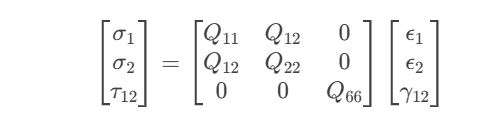
For a Single Ply (Orthotropic Material)
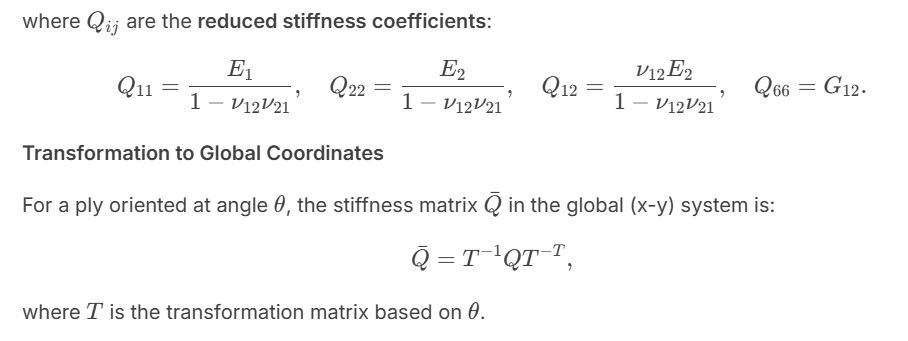
The stress-strain relationship in the material coordinate system (1-2) is:
4. Laminate Stiffness Matrix (ABD Matrix)
The ABD matrix relates forces/moments to mid-plane strains/curvatures:
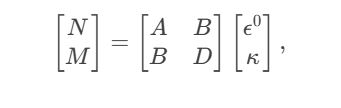
where:
- N: In-plane force resultants.
- M: Moment resultants.
- ϵ0: Mid-plane strains.
- κ: Curvatures.
- A,B,D: Extensional, coupling, and bending stiffness matrices.
Calculation of A,B,D:
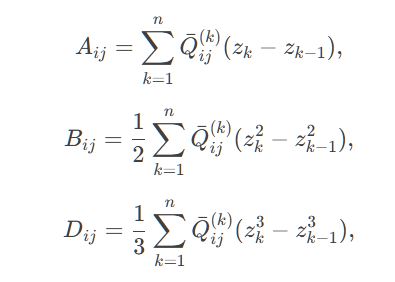
where zk is the distance from the mid-plane to the top of the k-th ply.
5. Governing Equations
Using equilibrium and strain-displacement relationships, the governing equations for a laminated plate are derived. For CLPT:
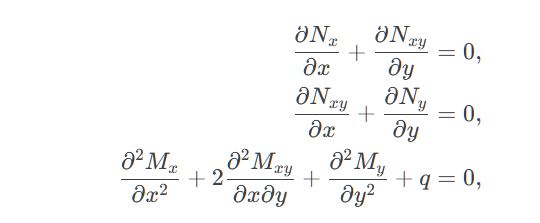
where q is the transverse load.
6. Solution Methods
- Analytical Solutions:
- Applicable for simple geometries and boundary conditions (e.g., simply supported rectangular plates).
- Use Navier or Lévy methods to solve the governing equations.
- Numerical Methods (FEA):
- Discretize the plate into shell elements (e.g., S4R in Abaqus).
- Solve using the finite element method (FEM).
7. Failure Analysis of Composite laminates
Failure reasons:
- Fiber Failure: Tensile/compressive failure along the fiber direction.
- Matrix Failure: Cracking or shear failure in the matrix.
- Delamination: Separation between plies.
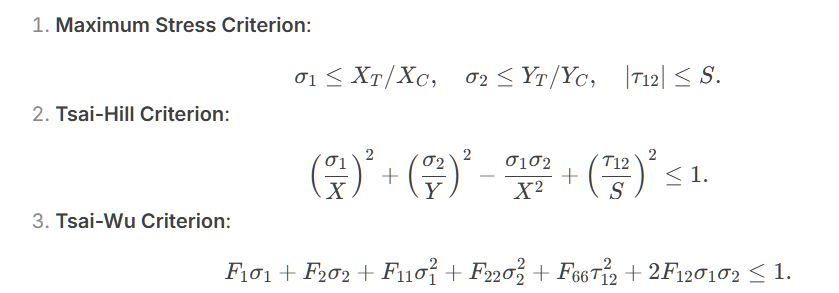
Failure Criteria:
- Maximum Stress Criterion:
8. Example Problem
Problem: A 4-ply symmetric laminate [0°/45°/−45°/90°] with dimensions 1 m×0.5 m×0.001 m is subjected to a uniform pressure load. Calculate the deflection and stresses.
Steps:
- Compute the ABD matrix using ply properties.
- Solve the governing equations using FEA (e.g., Abaqus).
- Extract mid-plane strains and curvatures.
- Compute ply stresses using the transformed stiffness matrices.
- Apply failure criteria to check for ply failure.
9. Practical Implementation in Abaqus
- Use shell elements with composite section definitions.
- Define material orientations for each ply.
- Specify stacking sequence and ply thicknesses.
- Apply loads and boundary conditions.
- Post-process results to evaluate stresses, strains, and failure indices.
Step-by-Step Example of 4-layer composite plate in Abaqus
1. Problem Setup
- Dimensions: 1 m (length) × 0.5 m (width) × 0.001 m (thickness).
- Material: Carbon Fiber-Epoxy (orthotropic material).
- E1=230 GPa (longitudinal modulus).
- E2=15 GPa (transverse modulus).
- ν12=0.3 (Poisson’s ratio).
- G12=50 GPa (shear modulus).
- Stacking Sequence: [0°,45°,−45°,90°].
- Ply Thickness: 0.00025 m per ply (4 plies total).
2. Step-by-Step Procedure
Step 1: Launch Abaqus/CAE
- Open Abaqus/CAE.
- Create a new model database.
Step 2: Create the Geometry
- Create a Part:
- Go to Part Module.
- Click Create Part.
- Name:
Composite_Plate, Type: 3D Deformable, Base Feature: Shell. - Approximate size: 1.2.
- Draw a rectangle with Length = 1 m and Width = 0.5 m.
- Assign Thickness = 0.001 m.
Step 3: Define Material Properties
- Create Material:
- Go to Property Module.
- Click Create Material, name:
Carbon_Fiber_Epoxy. - Under Mechanical > Elastic, select Lamina (for orthotropic material).
- Enter material properties:
- E1=230e9 Pa, E2=15e9 Pa, ν12=0.3, G12=50e9 Pa, G13=50e9 Pa, G23=5e9 Pa.
- Define Ply Orientations:
- Create a Layup:
- Click Create Composite Layup, name:
Composite_Layup. - Assign the material
Carbon_Fiber_Epoxy. - Define the stacking sequence:
- Ply 1: 0°, Thickness = 0.00025 m.
- Ply 2: 45°, Thickness = 0.00025 m.
- Ply 3: -45°, Thickness = 0.00025 m.
- Ply 4: 90°, Thickness = 0.00025 m.
- Click Create Composite Layup, name:
- Create a Layup:
Step 4: Assign Section and Layup
- Create Section:
- Click Create Section, name:
Composite_Section. - Category: Shell, Type: Composite.
- Assign the composite layup:
Composite_Layup.
- Click Create Section, name:
- Assign Section to Part:
- Select the plate geometry.
- Click Assign Section and choose
Composite_Section.
Step 5: Mesh the Model
- Seed the Part:
- Go to Mesh Module.
- Click Seed Part, approximate global size: 0.05 m.
- Assign Element Type:
- Click Assign Element Type.
- Family: Shell, Element Type: S4R (4-node reduced-integration shell element).
- Generate Mesh:
- Click Mesh Part to generate the mesh.
Step 6: Define Boundary Conditions for Composite Plate
- Apply Constraints:
- Go to Load Module.
- Assume the plate is clamped on one edge:
- Click Create Boundary Condition, name:
Fixed_Edge. - Select the edge to fix and constrain all degrees of freedom (U1, U2, U3, UR1, UR2, UR3).
- Click Create Boundary Condition, name:
Step 7: Apply Loads to Composite Plate
- Apply Mechanical Load:
- Click Create Load, name:
Pressure_Load. - Select the top surface of the plate.
- Apply a uniform pressure (e.g., 1000 Pa).
- Click Create Load, name:
Step 8: Create a Static Step
- Create Step:
- Go to Step Module.
- Click Create Step, name:
Static_Step, Procedure: Static, General.
Step 9: Submit the Job for Composite Plate Analysis
- Create Job:
- Go to Job Module.
- Click Create Job, name:
Composite_Plate_Analysis. - Submit the job.
- Run the Analysis:
- Click Submit and monitor the job status.
- Check the
.datfile for errors.
Step 10: Post-Processing
- Open Results:
- Go to Visualization Module.
- Open the output database (
Composite_Plate_Analysis.odb).
- Plot Deformation and Stresses:
- Click Plot > Deformed Shape to visualize deformation.
- Use Plot > Contour to plot stress distributions (e.g., von Mises stress, principal stresses).
- Extract Results:
- Go to Report > Field Output.
- Select variables (e.g., stress, strain) and save the report.
3. Example Python Script for Automation
from abaqus import *
from abaqusConstants import *
from caeModules import *

# Create model and part
mdb.Model(name='Composite_Plate')
myModel = mdb.models['Composite_Plate']
myPart = myModel.Part(name='Plate', dimensionality=THREE_D, type=DEFORMABLE_SHELL)
mySketch = myModel.ConstrainedSketch(name='Sketch', sheetSize=1.2)
mySketch.rectangle(point1=(0,0), point2=(1,0.5))
myPart.BaseShell(sketch=mySketch)

# Define composite material
myMaterial = myModel.Material(name='Carbon_Fiber_Epoxy')
myMaterial.Elastic(type=LAMINA, table=((230e9, 15e9, 0.3, 50e9, 50e9, 5e9), ))

# Define composite layup
myCompositeLayup = myModel.CompositeLayup(name='Composite_Layup', description='4-ply laminate')
myCompositeLayup.CompositePly(suppressed=False, plyName='Ply-1', region=myPart.Set(faces=myPart.faces),
    material='Carbon_Fiber_Epoxy', thickness=0.00025, orientation=0.0)
myCompositeLayup.CompositePly(suppressed=False, plyName='Ply-2', region=myPart.Set(faces=myPart.faces),
    material='Carbon_Fiber_Epoxy', thickness=0.00025, orientation=45.0)
myCompositeLayup.CompositePly(suppressed=False, plyName='Ply-3', region=myPart.Set(faces=myPart.faces),
    material='Carbon_Fiber_Epoxy', thickness=0.00025, orientation=-45.0)
myCompositeLayup.CompositePly(suppressed=False, plyName='Ply-4', region=myPart.Set(faces=myPart.faces),
    material='Carbon_Fiber_Epoxy', thickness=0.00025, orientation=90.0)

# Mesh
myPart.seedPart(size=0.05)
myPart.setElementType(elemTypes=(ElemType(elemCode=S4R, elemLibrary=STANDARD), ))
myPart.generateMesh()

# Boundary conditions
myModel.DisplacementBC(name='Fixed_Edge', createStepName='Initial', region=myPart.Set(edges=myPart.edges[0]),
    u1=SET, u2=SET, u3=SET, ur1=SET, ur2=SET, ur3=SET)

# Load
myModel.Pressure(name='Pressure_Load', createStepName='Static_Step', region=myPart.Set(faces=myPart.faces),
    magnitude=1000.0)

# Step
myModel.StaticStep(name='Static_Step', previous='Initial')

# Job
myJob = mdb.Job(name='Composite_Plate_Analysis', model='Composite_Plate')
myJob.submit()
myJob.waitForCompletion()
Read more:
Effect of glass fiber reinforced polymer composite material
Structure, mechanical properties, and finite-element modeling of an Al particle/resin composite