
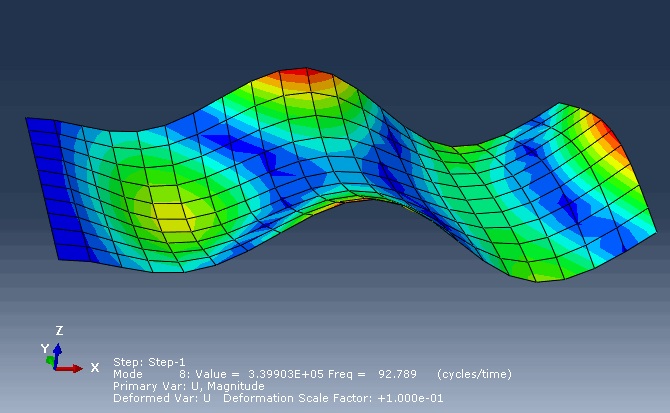
By understanding the concepts, engineers can predict vibrational behavior, avoid resonance, and optimize designs in fields ranging from civil engineering to aerospace.
- Natural frequencies are intrinsic properties of a system governed by mass, stiffness, and boundary conditions.
- Mode shapes: The dynamic deflection shape of linear structures can be decomposed in a sum of elementary vibration patterns. These vibration patterns are called mode shapes, they are illustrated below with the example of a cantilever beam.
Natural Frequency Theory and Mode Shapes
1. Natural Frequency
Definition:
Natural frequency is the rate at which a body vibrates when disturbed without being subject to a driving or damping force. The pattern or shape of this vibrating motion is the corresponding mode of the body’s or system’s vibration, known as the normal mode
Key Characteristics:
- Each system has multiple natural frequencies, corresponding to different vibrational patterns (mode shapes).
- Natural frequencies depend on:
- Mass distribution: More mass lowers natural frequencies.
- Stiffness: Higher stiffness increases natural frequencies.
- Boundary conditions (e.g., clamped, free): Constraints alter stiffness and thus frequencies.
Mathematical Representation:
For a simple single-degree-of-freedom (SDOF) system:
- fn: Natural frequency (Hz).
- k: Stiffness (N/m).
- m: Mass (kg).
For continuous systems (e.g., beams, plates), natural frequencies are derived from partial differential equations (PDEs) like the Euler-Bernoulli beam equation or Kirchhoff plate theory, leading to an eigenvalue problem where frequencies are the eigenvalues.
2. Mode Shapes
Definition:
A mode shape describes the deformation pattern of a structure vibrating at a specific natural frequency. Each natural frequency corresponds to a unique mode shape.
Key Characteristics:
- Mode shapes are orthogonal and independent of each other.
- They represent relative displacements (not absolute magnitudes) of points on the structure.
- Nodes (points with zero displacement) and antinodes (points with maximum displacement) characterize mode shapes.
Examples of Mode Shapes:
- Beam:
- 1st mode: Fundamental bending (one half-wave).
- 2nd mode: Second bending (two half-waves).
- 3rd mode: Torsional or higher bending.
- Plate:
- 1st mode: Bending along the longer edge.
- 2nd mode: Bending along the shorter edge.
- 3rd mode: Diagonal bending or twisting.
3. Mathematical Framework
For a multi-degree-of-freedom (MDOF) system, the equation of motion is:
[M]{u¨}+[K]{u}={0}
- [M]: Mass matrix.
- [K]: Stiffness matrix.
- {u¨}: Acceleration vector.
- {u}: Displacement vector.
Solving the eigenvalue problem:
([K]−ω2[M]){ϕ}={0}
- ω2: Eigenvalues (squared natural frequencies).
- {ϕ}: Eigenvectors (mode shapes).
4. Applications
- Structural Design: Avoid resonance by ensuring natural frequencies do not align with operational frequencies (e.g., bridges, turbines).
- Aerospace: Analyze wing flutter or spacecraft component vibrations.
- Acoustics: Design musical instruments (e.g., tuning fork natural frequencies determine pitch).
- Failure Prevention: Identify critical frequencies that could cause fatigue or collapse (e.g., Tacoma Narrows Bridge resonance).
5. Example: Aluminum Sheet Modal Analysis
For the aluminum sheet (1 m × 0.5 m × 0.003 m) analyzed earlier:
- First Natural Frequency: ~5 Hz (bending in the longer direction).
- Second Natural Frequency: ~14 Hz (bending in the shorter direction).
- Third Natural Frequency: ~25 Hz (twisting or combined bending).
Mode Shapes Visualization:
- Mode 1: Symmetric bending with maximum displacement at the center.
- Mode 2: Antisymmetric bending with nodal lines along the center.
- Mode 3: Diagonal twisting with nodes dividing the sheet.
6. Damping and Real-World Behavior
- Damping reduces vibration amplitude but has minimal effect on natural frequencies.
- In real systems, damping shifts frequencies slightly and introduces complex eigenvalues.
7. Experimental vs. Computational Analysis
- Experimental Modal Analysis: Uses accelerometers and impact hammers to measure frequencies and mode shapes.
- Computational Methods (FEA): Tools like Abaqus solve eigenvalue problems numerically to predict natural frequencies and mode shapes.
natural frequency analysis in Abaqus software
Here’s a step-by-step guide to performing a natural frequency analysis (modal analysis) of an aluminum sheet in Abaqus, including calculating the first 10 natural frequencies and mode shapes:
1. Problem Setup
- Geometry: Rectangular sheet with dimensions 1 m × 0.5 m × 0.003 m.
- Material: Aluminum (Young’s modulus = 70 GPa, Poisson’s ratio = 0.33, Density = 2700 kg/m³).
- Objective: Calculate the first 10 natural frequencies and mode shapes.
2. Step-by-Step Procedure
Step 1: Launch Abaqus/CAE
- Open Abaqus/CAE.
- Create a new model database.
Step 2: Create the Geometry
- Create a Part:
- Go to Part Module.
- Click Create Part.
- Name:
Sheet, Type: 3D Deformable, Base Feature: Shell. - Approximate size: 1.2 (to accommodate the sheet dimensions).
- Draw a rectangle with Length = 1 m and Width = 0.5 m.
- Assign Thickness = 0.003 m.
Step 3: Define Material Properties
- Create Material:
- Go to Property Module.
- Click Create Material, name:
Aluminum. - Under Mechanical > Elastic, enter:
- Young’s Modulus: 70e9 Pa (70 GPa).
- Poisson’s Ratio: 0.33.
- Under General > Density, enter: 2700 kg/m³.
- Create Section:
- Click Create Section, name:
Sheet_Section. - Category: Shell, Type: Homogeneous.
- Assign material:
Aluminum, Thickness: 0.003.
- Click Create Section, name:
- Assign Section to Part:
- Select the sheet geometry.
- Click Assign Section and choose
Sheet_Section.
Step 4: Mesh the Model
- Seed the Part:
- Go to Mesh Module.
- Click Seed Part, approximate global size: 0.05 m (adjust based on convergence needs).
- Assign Element Type:
- Click Assign Element Type.
- Family: Shell, Element Type: S4R (4-node reduced-integration shell element).
- Generate Mesh:
- Click Mesh Part to generate the mesh.
Step 5: Define Boundary Conditions in Abaqus
- Assumption: The sheet is free-free (no constraints).
(If clamped or supported, apply displacement constraints to edges/faces.)
Step 6: Create a Frequency Step
- Create Step:
- Go to Step Module.
- Click Create Step, name:
Frequency_Step, Procedure: Linear perturbation > Frequency. - Number of eigenvalues: 10 (to extract first 10 natural frequencies).
- Keep other settings as default.
Step 7: Submit the Job in Abaqus
- Create Job:
- Go to Job Module.
- Click Create Job, name:
Sheet_Frequency. - Submit the job.
- Run the Analysis:
- Click Submit and monitor the job status.
- Check the
.datfile for errors.
Step 8: Post-Processing
- Open Results:
- Go to Visualization Module.
- Open the output database (
Sheet_Frequency.odb).
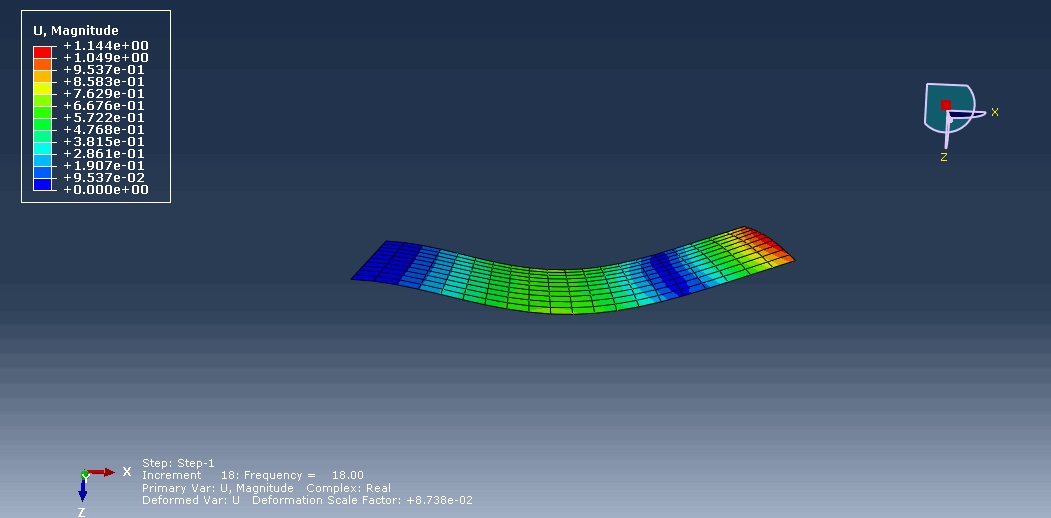
- Plot Mode Shapes:
- Click Plot > Deformed Shape.
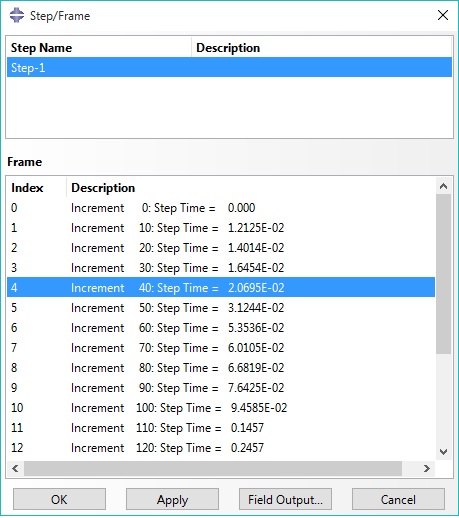
- Use the Step/Frame dialog to cycle through the first 10 mode shapes.
- Extract Frequencies:
- Go to Report > Field Output.
- Select Unique Nodal for output variable, choose Eigenfrequency.
- Save the report to a text file to view the natural frequencies.
3. Key Notes
- Mesh Sensitivity:
- Refine the mesh if higher-mode accuracy is critical.
- Use S4R or S8R elements for shells.
- Boundary Conditions:
- For a clamped sheet, fix displacements/rotations on edges.
- Free-free analysis includes rigid body modes (zero frequency), so extract more eigenvalues.
- Material Properties:
- Ensure correct units (Pa for modulus, kg/m³ for density).
4. Python Script for Automation
from abaqus import *
from abaqusConstants import *
from caeModules import *

# Create model and part
mdb.Model(name='Sheet_Frequency')
myModel = mdb.models['Sheet_Frequency']
myPart = myModel.Part(name='Sheet', dimensionality=THREE_D, type=DEFORMABLE_SHELL)
mySketch = myModel.ConstrainedSketch(name='Sketch', sheetSize=1.2)
mySketch.rectangle(point1=(0,0), point2=(1,0.5))
myPart.BaseShell(sketch=mySketch)

# Assign material and section
myMaterial = myModel.Material(name='Aluminum')
myMaterial.Elastic(table=((70e9, 0.33), )
myMaterial.Density(table=((2700, ), ))
mySection = myModel.HomogeneousShellSection(name='Sheet_Section', preIntegrate=OFF,
material='Aluminum', thickness=0.003)
myPart.SectionAssignment(region=myPart.Set(faces=myPart.faces), sectionName='Sheet_Section')

# Mesh
myPart.seedPart(size=0.05)
myPart.setElementType(elemTypes=(ElemType(elemCode=S4R, elemLibrary=STANDARD), ))
myPart.generateMesh()

# Frequency step
myModel.FrequencyStep(name='Frequency_Step', numEigen=10)

# Job submission
myJob = mdb.Job(name='Sheet_Frequency', model='Sheet_Frequency')
myJob.submit()
myJob.waitForCompletion()
results


We use this exact analysis as a standard check in our workflow. This guide is a good resource for new engineers on our team. A video version would be incredibly helpful
This was a great starting point. Could you do a follow-up on how to interpret the mode shapes for a composite sheet? I’m trying to correlate my Abaqus results with experimental data
Thanks for this. The explanation of boundary conditions was key. I’d love to see a similar tutorial on pre-stressed modal analysis, like a sheet under tension.
Clear tutorial! I used this to check the modal response of a car body panel. Is there a best practice for how many modes to extract to capture 90% of the effective mass?
Perfect for my university project! It helped me understand how to set up a frequency step. Do you have any advice on troubleshooting if the first mode seems too low or too high?