If you need to run UMAT, VUMAT, UEL, DFLUX, or other user subroutines in Abaqus, the first requirement is a working link between Abaqus and a supported Fortran compiler. This guide explains how to link Abaqus with Intel Fortran and Visual Studio on Windows for Abaqus 2024, Abaqus 2022, and Abaqus 2020. It also covers environment variables, verification steps, common errors, and troubleshooting methods so you can compile user subroutines with fewer installation issues.
These subroutines allow us to customize material models, element behavior, or other aspects of the simulation. In the projects we have done so far, we have used subroutines extensively to implement boundary conditions or properties that are not directly available within Abaqus.
In this comprehensive guide, we have provided a detailed and complete guide to linking and compiling Abaqus with Fortran on Windows. In this article, we have explained how to link different versions of Abaqus to Fortran. The linking method is not the same for each version of Abaqus. We have explained how to link versions 2024, 2022 and 2020 of Abaqus with Fortran in this article. Depending on the version of Abaqus, obtain the necessary peripheral software to link to Fortran and follow the necessary steps exactly as we have explained.
What Does Linking Abaqus with Fortran Mean?
Linking Abaqus with a Fortran compiler means configuring the software environment so Abaqus can compile and execute user subroutines during analysis. This is essential for advanced material models, custom boundary conditions, heat transfer definitions, and element formulations. Without proper linking, Abaqus may fail to recognize the compiler or stop with compilation and launcher errors.
Why Abaqus Needs a Fortran Compiler
Abaqus uses Fortran for many user subroutines that extend the default capabilities of the solver. Engineers commonly need a Fortran compiler when working with:
UMATfor custom material behaviorVUMATfor explicit material modelsUELfor user-defined elementsUSDFLDfor field variable controlDFLUXfor custom heat flux definitionsFRICfor friction behavior
Adding this section helps target search queries such as why Abaqus needs Fortran compiler, Abaqus UMAT compiler setup, and Abaqus user subroutine installation.
Supported Software Combinations for Abaqus and Intel Fortran
Before starting the installation, confirm that your Abaqus version is compatible with your Visual Studio version and Intel compiler release. A mismatch between these tools is one of the most common causes of linking failure. In general, users should verify:
- Abaqus version
- Visual Studio version
- Intel Fortran or oneAPI version
- Windows version
- Required environment variables and system path entries
Linking and compiling Abaqus 2024 with Fortran
1.Install Prerequisites for Linking
- Abaqus 2024 Installation: Ensure it is installed on your system.
- Fortran Compiler: Install a compatible Fortran compiler (Intel OneAPI for this Version).
- Microsoft Visual Studio 2022 : Download Visual Studio from this link.

When installing Visual Studio 2022, the user must ensure that “Desktop Development with C++” has been enabled alongside the main Visual Studio Core Editor.

- Intel® Toolkits : The recent release of Intel OneAPI is free to install. The user should download and install both the OneAPI Base and High-Performance Computing (HPC) toolkit for the Fortran compiler. The OneAPI Base toolkit should be downloaded and installed first as it is a perquisite to download and install the HPC toolkit.
During the installation, ensure that you integrate Intel oneAPI with Visual Studio 2022 as the Integrated IDE.
2-Set Up the Environment
At the first go to the Intel oneAPI installation folder.
A reference where this can be found is shown below. Click the bar and type “cmd”. A command prompt will appear. In the command prompt, type “setvars.bat” and run the command. This will set the environment files ready in the system.

To configure and edit the abq2024.bat file in the ABAQUS Commands folder (located in <installation directory>\SIMULIA\Commands), follow these steps. This batch file is used to set up the environment and launch ABAQUS.
It allows you to customize the environment, such as specifying compilers, linking libraries, or setting up user subroutines.
The following calls, Visual Studio’s “vcvarsall.bat” and OneAPI’s “vars.bat” need to be inputted depending on where they are in the system. An example of the file locations are shown below
@call ":\Microsoft Visual Studio\2022\Community\VC\Auxiliary\Build\vcvarsall.bat" x64
@call ":\Intel\oneAPI\compiler\latest\env\vars.bat" intel64 vs2022

Save this file and close it.
Find ABAQUS environment file in <installation directory>\SIMULIA\EstProducts\2024\win_b64\SMA\site and edit the abaqus_v6.env file using notepad.
The following commands need to be added in the end of the file.
compile_fortran += ['/names:lowercase',]
link_sl='LINK /NODEFAULTLIB:LIBCMT.LIB /dll /def:%E /out:%U %F %A %L %B'
Save the file and close the notepad.
open a command prompt using administration privileges and type “abaqus verify -user_std”.
abaqus verify -user_std

Need Consult with Linking Abaqus and Fortran compiler?
Our experts are ready to help you link any version of Abaqus and Fortran. Whether you’re facing convergence problems, implementing advanced material models, writing UMAT/VUMAT subroutines, or validating complex finite element analyses, our Abaqus specialists can help you obtain accurate and reliable results.
Linking Abaqus 2022 & Visual Studio 2019 & Intel Parallel Studio
To link Abaqus and Fortran, it is important to note that the process of linking them is different in each version. Therefore, we must make sure that the version of each software exactly matches what is stated.
Assuming that the values stated are correct, you must carefully follow the steps below to link Abaqus and Fortran.
Step 1: Visual Studio 2019 (Must be installed before Intel Parallel Studio)
In order to Abaqus understand and run your custom Fortran code, it must first be translated and packaged into the language that Abaqus itself was built in (the Microsoft Visual Studio environment).
So in short:
We install Visual Studio to provide a compatible environment for a Fortran compiler (such as Intel Fortran).Use its compiler to convert our text code into a file that Abaqus can use and run it.
Without Visual Studio, your Fortran code is just a text file, and Abaqus can’t undrestand it.
Install Visual Studio 2019 with these components:
Desktop development with C++
MSVC v142 – VS 2019 C++ x64/x86 build tools
Windows 10 SDK (version matching your system)

Step 2: Install Intel Parallel Studio XE 2019
We install Visual Studio to provide the platform for compiling and linking.
Then we install Intel Parallel Studio XE to provide the brains and experts (the Fortran compiler) that can optimally translate our code and produce understandable output for Abaqus.
Without this combination, Abaqus will not be able to understand and execute our custom Fortran code.
- Install Intel Compiler 19.1 (part of Intel Parallel Studio XE 2019)
- During installation, make sure to integrate with Visual Studio 2019
If you have enough space to install, install all the default items. Otherwise, if you have relatively limited space, install only the first 8 items. If you still have less space, check the items specified in the image.

Step 3:Abaqus 2022 with CAA API component (Can be installed at any time)
Why do we need Visual Studio and a C++ compiler for the CAA API?
Because the Abaqus core itself is written in C++. In order for your C++ code to link and merge with the Abaqus core, we need to use the same compiler and tools that Abaqus itself was built with (usually Visual Studio and a Microsoft or Intel C++ compiler).
- Ensure CAA API component is included
- Abaqus can be installed at any point in the process
- To verify whether the CAA API component is
- installed, run the Abaqus software manager, whichshould be located in:
Step 4: Windows Environment Variables
Environment variables act as a central guidance and information system for the entire linking process. They allow:
- The compiler (Intel Fortran)
- The linker (Visual Studio)
- The libraries (Abaqus Libraries)
to find each other easily and work together without confusion to produce the desired output (a healthy .dll file) for Abaqus.
Setting these variables correctly is the foundation for successfully compiling and linking Abaqus subroutines. These settings are usually done automatically when you install Intel Parallel Studio and Visual Studio, but if you encounter a problem, the first thing you should check are these environment variables.
After installations, set these environment variables (either system-wide or in your Abaqus environment):
SET INTEL_DIR=C:\Program Files (x86)\IntelSWTools\compilers_and_libraries_2019\windows
Step 5: Link Abaqus + Fortran (& C++) Compiler
- Find the location of the files “ifortvars.bat” and “vcvars64.bat”, the default paths of which are as follows if you have not made any changes to the installation, respectively:
- Add the installation address of the two files in the previous step to “Environment variables”.
(Right-click on This PC, then Properties, then select Advanced system settings from the options on the right, and finally select Environment variables)

Step 6: Modify Target
Open the abq2022.bat file (where abq is your Abaqus software version) with a text editor like notepad and enter the following code before the address C:\SIMULIA\….
@call ifortvars.bat intel64 vs2019

Find ABAQUS environment file in <installation directory>\SIMULIA\EstProducts\2024\win_b64\SMA\site and edit the abaqus_v6.env file using notepad.
The following commands need to be added in the end of the file.
compile_fortran += ['/names:lowercase',]
link_sl='LINK /NODEFAULTLIB:LIBCMT.LIB /dll /def:%E /out:%U %F %A %L %B'
Step 7: Verify Linking Abaqus
open a command prompt using administration privileges and type “abaqus verify -user_std”.
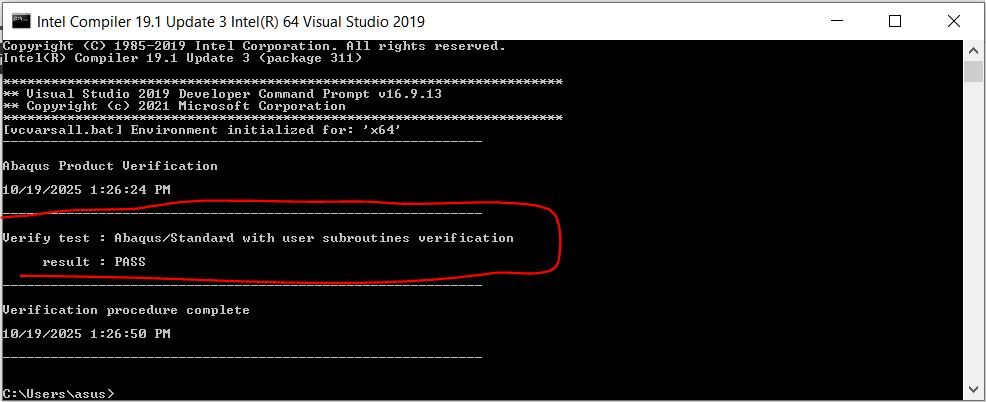
abaqus verify -user_stdFor Abaqus and the Fortran compiler to be fully linked, the result should be as shown below.
Linking Abaqus 2020 & Intel Fortran Compiler with Visual Studio
1. Softwares Installation
- Visual Studio community 2019
- Intel® Parallel Studio XE 2020 update 2 (Intel Fortran Compiler 19.1)
- Abaqus 2020
2. Windows Environment Variables for Abaqus and Frotran
An environment variable is a user-definable value that can affect the way running processes will behave on a computer. Environment variables are part of the environment in which a process runs
2.1. “ifortvars.bat“
- System variables > Path
- Add paths containing the .bat files “ifortvars.bat“
- Default folder contains “ifortvars.bat”
- C:\Program Files (x86)\IntelSWTools\compilers_and_libraries_2019.5.281\windows\bin
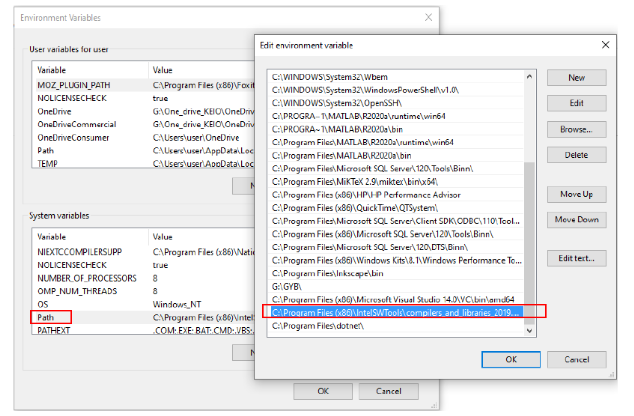
2.2. “vcvars64.bat”
- System variables > Path▪Add paths containing the .bat files “vcvars64.bat”
- Default folder contains “vcvars64.bat “
- C:\Program Files (x86)\Microsoft Visual Studio 14.0\VC\bin\amd64

2.3. Link Abaqus & Fortran with Batch files
- Access folder “C:\SIMULIA\Commands”
- Edit file “abq2020.bat”as following the highlight text
SET PATH=%PATH%;C:\Program Files (x86)\IntelSWTools\compilers_and_libraries_2020.2.254\windows\bin\intel64;
call “C:\Program Files (x86)\IntelSWTools\compilers_and_libraries_2020.2.254\windows\bin\ifortvars.bat” -arch intel64 vs2019

Common Errors When Linking Abaqus and Fortran
Many users search for linking help only after hitting an error. This section can bring in valuable search traffic. Include examples like:
Abaqus could not find a Fortran compilerProblem during compilationLINK : fatal errorifort is not recognized as an internal or external commandAbaqus verify -user_std failedUser subroutine file could not be compiled
Then add a short explanation under each one with likely causes such as wrong installation order, missing environment variables, unsupported compiler version, or broken PATH settings.
How to Verify That Abaqus and Fortran Are Linked Correctly
After installation, verification is necessary before running a real project. The simplest method is to run the Abaqus verification command for user subroutines. If the verification finishes successfully, Abaqus is able to call the compiler and build the required files. If not, review your PATH, compiler installation, and Abaqus command environment settings.
This section targets search terms like how to verify Abaqus Fortran linking and abaqus verify user_std.
How to Run a UMAT or VUMAT After Linking
Once the compiler is linked correctly, you can run user subroutines directly from Abaqus using the job submission command or CAE interface. For example, users can attach a .for or .f file to an Abaqus job and submit it for compilation and analysis. This is useful for readers whose actual goal is not just installation, but running a UMAT or VUMAT successfully.
Troubleshooting Abaqus and Intel Fortran Linking Problems
If linking still does not work, check the following:
- Visual Studio was installed before Intel Fortran
- Abaqus version matches a supported compiler version
- Environment variables are set correctly
- The compiler command works from the command prompt
- Abaqus verification test passes
- No old compiler paths remain in the system variables
This section is useful because many search users look for solutions, not just setup steps.
Best Practices Before Installing Abaqus and Fortran Tools
To reduce setup issues, install the software in the recommended order and restart the system after major installations. It is also a good idea to document your environment variables, keep only one active compiler configuration where possible, and test linking immediately after installation. These small steps can save significant debugging time later.
Frequently Asked Questions
A1: To successfully link Abaqus with a Fortran compiler, you need:
- Operating System: Windows (10/11 Pro) or Linux (RHEL/CentOS/Ubuntu)
- Fortran Compiler: Intel Fortran Compiler (ifort) is officially supported, with versions that match your Abaqus release
- Microsoft Visual Studio: Required on Windows for C++ libraries and linker
- Abaqus Version: Check the SIMULIA documentation for the specific compiler version compatibility matrix
- Environment Variables: Properly set PATH, LIB, and INCLUDE variables for compiler and SDK
Always verify the exact compiler version for your Abaqus release in the official Installation Guide.
A2: Follow this step-by-step setup process:
- Install Visual Studio: Install Microsoft Visual Studio (Community edition works) with C++ development tools
- Install Intel Fortran Compiler: Download and install Intel oneAPI HPC Toolkit or Intel Parallel Studio XE
- Set Environment Variables: Open command prompt and run the compiler’s environment script:
- For Intel oneAPI:
"C:\Program Files (x86)\Intel\oneAPI\setvars.bat" - For older versions: Run the compiler’s “Compiler Command Prompt” shortcut
- For Intel oneAPI:
- Verify Installation: Type
ifort -Vto confirm the compiler works - Test Abaqus Link: Run
abaqus verify -user_stdto check if your subroutine compilation works
Note: Install Abaqus after the compiler and Visual Studio to ensure proper path detection during installation.
A3: The process involves:
- Write the Subroutine: Code your Fortran subroutine (e.g.,
umat.f) with the required interface - Set Up Compilation Environment: Open a command prompt and initialize the compiler environment:
- Windows: Run the Intel oneAPI command prompt or use
setvars.bat - Linux: Source the
compilervars.shscript
- Windows: Run the Intel oneAPI command prompt or use
- Run Abaqus Job: Submit the job with the user subroutine:
abaqus job=YourJobName user=umat.f - Check Compilation: Verify successful compilation in the
.logfile; look for “Compile Abaqus/Standard User Subroutines” completion - Debug Errors: Compiler errors appear in the
.logfile; usewrite(7,*)statements in your subroutine to debug (output goes to the.msgfile)
Always use the Abaqus command line (not Visual Studio directly) to compile subroutines, as Abaqus passes the necessary flags and libraries.
A4: The most frequent issues and their solutions:
LNK1181: cannot open input file→ Environment variables missing. Run the compiler’s environment setup script before Abaqus commandsifort: command not found→ Compiler not in PATH or not installed. Reinstall Intel Fortran and set PATH manuallyCompilation failed→ Fortran code has syntax errors. Check the.logfile for line numbers and fix the subroutineCannot open include file 'ABA_PARAM.INC'→ Missing INCLUDE path. Ensure the Abaqus installation’sincludefolder is in your environment’s INCLUDE pathFatal error LNK1120→ Mismatched compiler versions. Use the exact compiler version recommended in the Abaqus Installation Guide
Debugging tip: Run abaqus verify -all to run diagnostic tests and identify the specific failing component.
A5: Compile them into a single object file or library first:
- Create Object Files: In a command prompt with the compiler environment, compile all files to objects:
ifort -c file1.f -o file1.obj
ifort -c file2.f -o file2.obj - Create a Library (Static): Combine objects into a static library:
lib /out:mylib.lib file1.obj file2.obj - Use in Abaqus: Submit the job, pointing to the library instead of individual files:
abaqus job=YourJobName user=mylib.lib - Alternative (Direct): Abaqus also accepts multiple
.ffiles if listed together:abaqus job=YourJobName user="file1.f file2.f"
(This works, but compiling separately into a library is more efficient for large projects)
For large projects, consider using a makefile to manage compilation dependencies.