
Setting up units correctly in Abaqus is the first step to a successful simulation. Abaqus has no built-in unit system. This means that you are responsible for choosing and maintaining consistent units throughout your model.
One unit mistake can lead to completely wrong results. Your model may work perfectly, but the stresses, forces, and displacements may be completely incorrect.
This guide shows you how to avoid these critical errors. In this article, we have provided practical examples to explain how to use units in Abaqus. We will explain the basic concept of consistent unit systems.
In this guide, you will learn:
Follow this tutorial to ensure that your Abaqus results are always physically correct and reliable.
1. Introduction to Units in Abaqus
Understanding units is essential in Abaqus. The software does not recognize units such as pounds or meters. Instead, it only processes numerical values. You need to make sure that these numbers represent a consistent unit system. This means that all of your inputs must match. Your material properties, loads, and dimensions must work together.
A consistent system produces physically meaningful results. This is your first and most important modeling responsibility.
1.1. Why Abaqus Has No Default Unit System
Abaqus is designed for global use. Engineers around the world use different measurement systems. Some use SI units and others use US units. The software remains neutral to serve all users.
It processes numbers without assuming their units. This flexibility allows for the creation of any fixed system. You can work in meters or millimeters. The choice is yours to build and manage.
This design makes the software universally applicable.
1.2. Importance of Consistent Units in FEM Simulations
Unit consistency ensures that your results are correct. All input values must be from the same system. Your units of length, force, mass, and time must match.
Incompatible units introduce dangerous errors. Your stresses can be a thousand times too high. Your displacements can be a million times too small. These errors can remain hidden until catastrophic failure.
Compatible units protect your analysis from these errors. They ensure that your solutions reflect real-world physics.
Correctly setting and managing units in Abaqus is a fundamental prerequisite for any analysis procedure you choose , as even the most sophisticated solver will produce meaningless results without a consistent unit framework.
2. Common Unit Systems Used in Abaqus
Abaqus allows you to work with any consistent system of units. The most important requirement is not which system you choose, but that all quantities remain dimensionally consistent throughout the model.
In engineering simulations, some unit systems are more convenient than others. The choice often depends on the model size, material data, experimental measurements, and the units commonly used in your industry.
2.1. SI Unit System: m–kg–s–N–Pa
The SI system is widely used in engineering and scientific analysis. A common Abaqus implementation uses meters, kilograms, seconds, and newtons as the fundamental quantities. Stress is then expressed in pascals.
| Quantity | Unit | Symbol |
|---|---|---|
| Length | meter | m |
| Mass | kilogram | kg |
| Time | second | s |
| Force | newton | N |
| Stress | pascal | Pa |
2.2. SI–mm Unit System: mm–tonne–s–N–MPa
For many mechanical and structural models, using millimeters instead of meters is more convenient. A commonly used consistent system is mm–tonne–s–N, with stress expressed in MPa.
Important: Do not enter material properties in SI units simply because your model uses millimeters. Every material property must be converted consistently with the selected system.
| Quantity | Unit | Symbol |
|---|---|---|
| Length | millimeter | mm |
| Mass | tonne | tonne |
| Time | second | s |
| Force | newton | N |
| Stress | megapascal | MPa |
2.3. mm–kg–s–N Unit System
Another useful system uses millimeters for geometry, kilograms for mass, seconds for time, and newtons for force. This system is also consistent, but derived quantities such as density require careful conversion.
2.4. US Customary Unit System
Abaqus can also be used with US customary units. These systems are common in industries that use inches, pounds, and seconds. However, special care is required because mass and force are not directly interchangeable.
| Quantity | Common Unit | Symbol |
|---|---|---|
| Length | inch | in |
| Force | pound-force | lbf |
| Time | second | s |
| Stress | psi | psi |
2.5. Comparison of Common Abaqus Unit Systems
The following table provides a quick comparison of several unit systems commonly encountered in Abaqus simulations.
| System | Length | Mass | Time | Force | Stress |
|---|---|---|---|---|---|
| SI | m | kg | s | N | Pa |
| SI–mm | mm | tonne | s | N | MPa |
| mm–kg–s | mm | kg | s | N | N/mm² |
| US Customary | in | lbm* | s | lbf | psi |
* US customary mass and force units require particular attention to the gravitational conversion factor when constructing a consistent system.
For most mechanical FEA models, choose a unit system that matches the units of your available material data and experimental measurements. The mm–tonne–s–N–MPa system is particularly convenient for many structural and mechanical models because dimensions and stresses are represented in familiar engineering units.

3. How to Set Up Units in Abaqus Step by Step
Creating a consistent unit system requires careful attention at every stage of Abaqus modeling. Start by choosing a consistent system and systematically applying it to geometry, materials, loads, and analysis settings.
Document your chosen system before building the model. This simple habit prevents unit mistakes when you modify the model or share it with others. A consistent approach ensures that all physical quantities interact correctly during the simulation.
Step 1: Define Units for Geometry
When creating or importing geometry, make sure that all dimensions match your chosen unit system. Abaqus does not automatically assign units to geometric dimensions.
For example, if you choose millimeters, enter a plate length of 100 mm as 100. Do not enter 0.1 unless your model is based on meters.
For imported CAD files, verify the model scale before starting the analysis. A scaling error in geometry affects every other quantity in the simulation.
Step 2: Define Units for Material Properties
Material properties must be consistent with the geometry, force, time, and mass units used in your model. Abaqus does not convert material properties automatically.
For example, Young’s modulus for structural steel is approximately 200 GPa. If your model uses millimeters and Newtons, enter this value as 200,000 MPa or 200,000 N/mm².
If you use inches and pounds, the same approximate modulus is 29 × 106 psi.
Density depends on your selected mass, length, and time units. Never copy a density value from a material database without checking its units first.
Step 3: Set Units for Loads, Boundary Conditions, and Output
Apply forces, pressures, temperatures, velocities, and other quantities using the same unit framework. Boundary conditions must also be consistent with the physical quantities used in your model.
For example, a force in Newtons combined with millimeter geometry produces stress in N/mm², which is equivalent to MPa.
Similarly, a force in pounds combined with inch geometry produces stress in psi. The same principle applies to moments, pressures, velocities, accelerations, and other model inputs.
Step 4: Verify Unit Consistency Before Running an Analysis
Before submitting your Abaqus Job, systematically verify the units of every important model parameter. Do not assume that a model is correct simply because the Job completes successfully.
A simple hand calculation can provide an excellent sanity check. Estimate the expected deformation, stress, or temperature range and compare it with the Abaqus results.
Also inspect the deformation pattern and stress distribution. Stress concentrations should occur in physically reasonable locations. Unexpectedly large or extremely small values can indicate a unit mismatch.
A Simple Unit Check Example
Consider a steel plate modeled using millimeters, Newtons, and seconds. If the plate length is 100 mm, Young’s modulus should be approximately 200,000 MPa.
If you accidentally enter 200 instead of 200,000 MPa, Abaqus will not warn you about the unit mismatch. The solver will simply use the numerical value you provided. The resulting deformation can therefore be dramatically incorrect.
Abaqus does not know whether your numbers represent meters, millimeters, Pascals, or MPa. You are responsible for maintaining consistency. Choose your unit convention once, document it, and use it everywhere in the model.
4. Material properties units conversion:
Converting material properties requires careful dimensional analysis, as values must align with your chosen length, force, and mass standards.
For example, a steel’s Young’s Modulus of 200 GPa equals 200,000 N/mm² (MPa) in an SI(mm) system, but becomes approximately 29 million psi when using US customary units with inches.
Density demands particular attention: 7850 kg/m³ converts to 7.85×10⁻⁹ tonne/mm³ for an SI(mm) model, or 0.000729 lb-s²/in⁴ for an inch-pound-second system.
Always use precise conversion factors and double-check derived units like density and pressure to ensure all terms remain consistent within your selected framework, thus maintaining physical accuracy across all calculations.
Material properties (such as Young’s modulus, density, and viscosity) must be set according to the selected unit system.
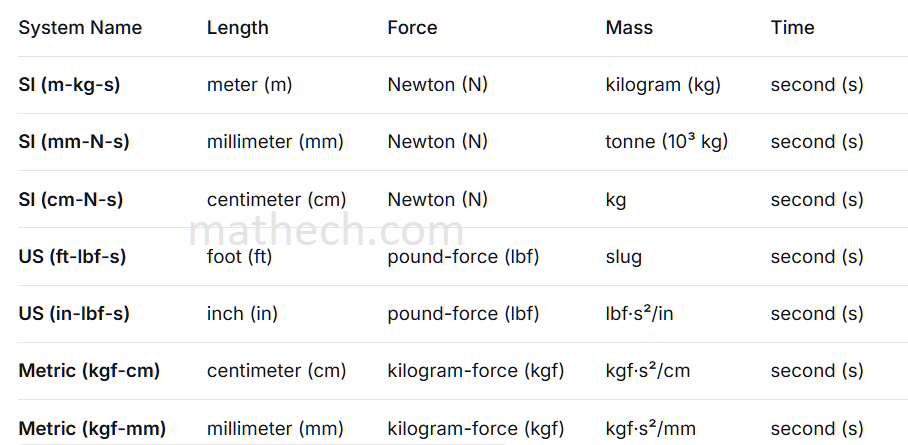
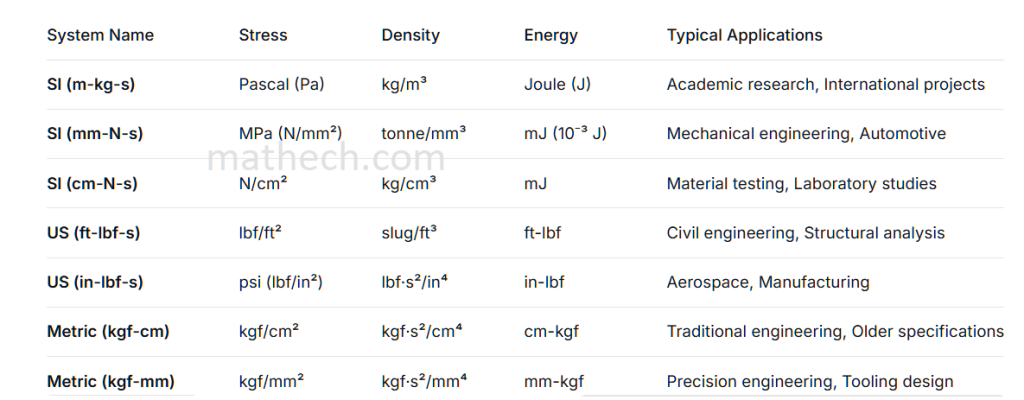
Several unit systems are popular in engineering:
- SI Units: Uses meters for length, kilograms for mass, and seconds for time.
- US Customary Units: Employs inches for length, pounds for force, and seconds for time, with mass in pounds-mass or slugs.
- mm-g-s System: Uses millimeters for length, grams for mass, and seconds for time, often with force in dynes or Newtons.

5. Practical examples of units in Abaqus
To demonstrate the practical application of unit consistency, we will walk through two common engineering scenarios. These examples will show how to implement a coherent unit system from start to finish, ensuring all inputs from geometry to results are physically accurate.
5.1 Detailed Examples of Each System
1. SI (m-kg-s) – Standard International System
- Length: 2.5 m (beam length)
- Force: 1000 N (applied load)
- Mass: 850 kg (structural mass)
- Stress: 2.1e8 Pa (210 MPa steel yield strength)
- Density: 7850 kg/m³ (steel density)
- Energy: 1500 J (impact energy)
2. SI (mm-N-s) – Modified SI for Engineering
- Length: 2500 mm (same beam length)
- Force: 1000 N (same applied load)
- Mass: 0.85 tonne (same mass)
- Stress: 210 MPa (same material strength)
- Density: 7.85e-9 tonne/mm³ (converted density)
- Energy: 1.5e6 mJ (same energy)
3. US (in-lbf-s) – American Engineering System
- Length: 98.43 in (same beam length)
- Force: 224.8 lbf (same load)
- Mass: 5.83 lbf·s²/in
- Stress: 30,450 psi (same material)
- Density: 7.32e-4 lbf·s²/in⁴
- Energy: 13,275 in-lbf
5.2. Example 1 – Steel Beam (SI Units)
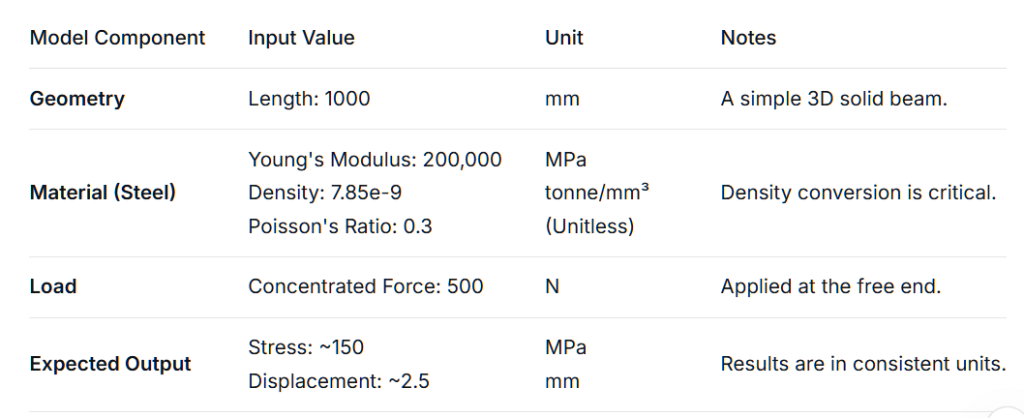
For a steel cantilever beam, we use the SI(mm) system. We would model the beam with dimensions in millimeters (e.g., 1000 mm long). The material property for steel would be defined with a Young’s Modulus of 200,000 MPa (N/mm²) and a density of 7.85e-9 tonne/mm³. A concentrated load would be applied in Newtons (N), and the resulting stress would be automatically calculated in MPa. This ensures displacement and stress results are directly interpretable.
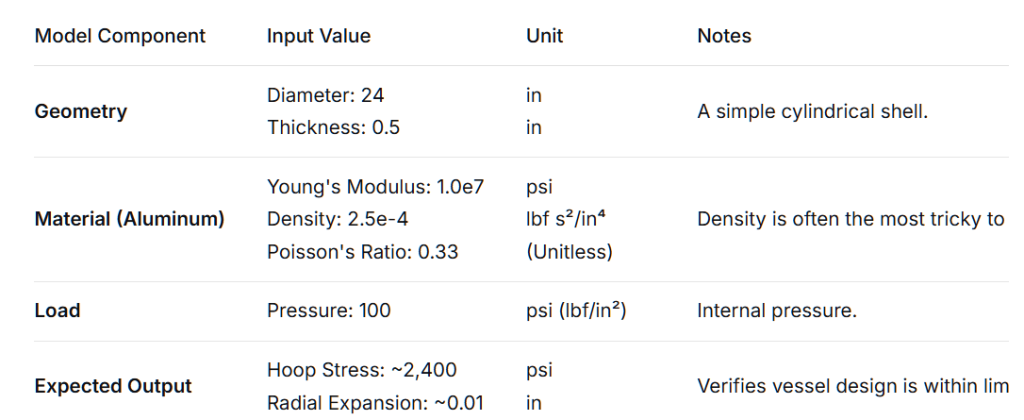
5.3. Example 2 – Pressure Vessel (US Units)
For an aluminum pressure vessel, we use the US Unit (inch) system. The vessel’s geometry, like its diameter and wall thickness, would be defined in inches. The aluminum’s Young’s Modulus would be set as approximately 1.0e7 psi, and its density as 2.5e-4 lb-s²/in⁴. The internal pressure would be applied in psi (lbf/in²). Using this consistent system, the output stress will also be in psi, providing a correct analysis of the vessel’s integrity.
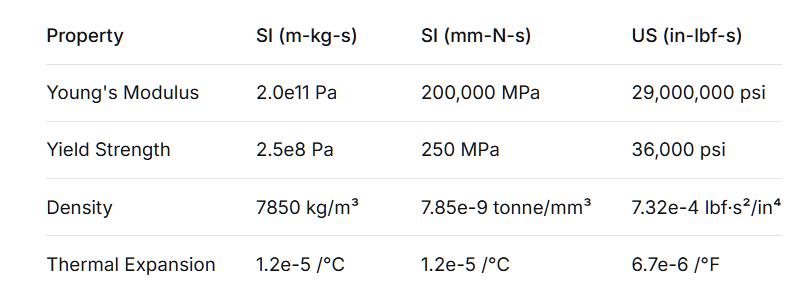
5.4. Example 3 – Aluminum material properties in Abaqus
Here’s a concise table showing Aluminum material properties in different unit systems for the specified parameters:

5.5. Example 4 – Steel (ASTM A36)
See more Abaqus projects and units
6. Best Practices for Managing Units in Abaqus
Establishing reliable unit management practices prevents costly errors and ensures simulation accuracy. These systematic approaches help maintain consistency throughout your modeling workflow, from initial setup to final result verification.
6.1. Using Unit Checklists
Create and use a standard checklist for every project. This list should verify all model components use the same unit system. For example, confirm that geometry, material properties, and loads all align with your chosen framework like the SI(mm) system we demonstrated earlier. A checklist provides a crucial final review before running any analysis.
6.2. Keeping Consistent Documentation
Maintain clear documentation within your model and project files. Always note your chosen unit system in the model description. Use consistent naming conventions that include units for loads and material properties. This practice ensures all team members understand the framework, preventing the mixing of units between different contributors working on the same project.
6.3. Verifying Results Through Dimensional Analysis
Perform quick hand calculations to verify your simulation outputs make physical sense. For instance, if you applied a 500N load to a steel beam as in our previous example, compare the Abaqus stress results with basic beam theory calculations. This reality check helps catch unit inconsistencies that might otherwise go unnoticed despite the analysis completing successfully.
These practices form a comprehensive quality control system that safeguards your simulations against common unit-related errors, ensuring reliable and trustworthy results for your engineering decisions.
7. Frequently Asked Questions (FAQ) – Abaqus Units
Abaqus has no default unit system. The software only processes numerical values without assuming any units. You must define and maintain a consistent unit system throughout your entire model.
Use our unit verification checklist and perform hand calculations to verify results. Check that geometry, material properties, loads, and outputs all align with your chosen unit system. Compare expected vs. actual stress and displacement values.
No, never mix different unit systems in one model. Choose one consistent system (like SI-mm or US-inch) and use it for all inputs. Mixing units creates dangerous scaling errors that produce physically meaningless results.
Inconsistent units lead to completely wrong results that may appear plausible but are physically incorrect. Your stresses could be thousands of times too high/low, leading to dangerous design decisions and potential structural failures.
Convert results using standard conversion factors after analysis. For example, multiply MPa results by 145 to get psi, or multiply mm displacements by 0.03937 to get inches. Never mix units during the analysis phase.
8. Conclusion and Recommendations for Setting units in Abaqus
Finally, Abaqus has no built-in unit system. To get correct answers, you must choose a consistent set of units. We recommend using a standard system such as SI units. Always check that all your inputs use the same units. This includes material properties, loads, and geometry. Carefully checking the units will prevent errors and ensure that your results are meaningful.
Need Expert Abaqus Simulation Support?
Whether you’re facing convergence problems, implementing advanced material models,Abaqus Units, writing UMAT/VUMAT subroutines, or validating complex finite element analyses, our Abaqus specialists can help you obtain accurate and reliable results.
9. Useful resources for studying units in Abaqus
- Units in Abaqus comprehensive guide for simulation – Technia Blog
- How do I get Abaqus to show units discussion on Reddit
- Abaqus Units detailed explanation and examples – CAE Assistant
- How to avoid errors with the units in Abaqus practical tips – TecnoDigital School
- Understanding Units in ABAQUS detailed analysis – Medium
- Abaqus units discussion in engineering forum – Eng-Tips